Connect your first datasource
Datasources are connected via Settings → Integrations. Most connections use OAuth; a few use API-key authentication. After authorization, an initial sync runs to populate dashboards. Most stores complete the initial sync in 5–15 minutes.
Before connecting
Section titled “Before connecting”- An account on the source platform with a role that can read the data Ignyte IQ requests.
- Browser access to the source — the OAuth flow opens the source platform’s authorization screen.
Connecting a datasource
Section titled “Connecting a datasource”- Go to Settings → Integrations (or follow the prompt in the post-signup flow).
- Select the platform to connect.
- Click Connect. The source platform’s authorization screen opens in a new window or tab.
- Approve the requested scopes on the source platform.
- Return to Ignyte IQ. The integration is listed as Connected with status Initial sync in progress.
- Wait for the initial sync to complete (typically 5–15 minutes; longer for stores with extensive history).
Common starting platforms
Section titled “Common starting platforms”Most common first connection for DTC brands.
OAuth account requirements: A Shopify staff role with permissions for orders, customers, and products.
Data provided: Orders, line items, customers, products, refunds, discounts.
Sync cadence: Hourly after the initial backfill.
Provides spend, conversions, and campaign data for the Marketing section.
OAuth account requirements: Access to the Google Ads MCC (manager) or individual account.
Data provided: Campaigns, ad groups, conversions, spend, click and impression data.
Facebook and Instagram ad performance.
OAuth account requirements: Business Manager admin role for the relevant ad account.
Data provided: Campaigns, ad sets, ads, spend, platform-reported conversions, creative data.
Email and SMS performance. API-key based, not OAuth.
Account requirements: A Klaviyo private API key from the source account.
Data provided: Campaigns, flows, send metrics, open and click rates, attributed revenue per send.
For all supported platforms, see Integrations overview.
Verify your data is flowing
Section titled “Verify your data is flowing”After the initial sync completes, three checks confirm data is syncing and metrics are populating:
-
Open the Data panel (top-right) and confirm the new datasource shows Connected with a recent last updated timestamp.
-
Open Brand Overview with the date range set to Yesterday. Metric tiles should show numbers — not a loading state or a “no data” state.
-
Spot-check one value against the source platform — for example, yesterday’s revenue against Shopify Admin → Analytics. Differences within a few percent are normal (timing or definition).
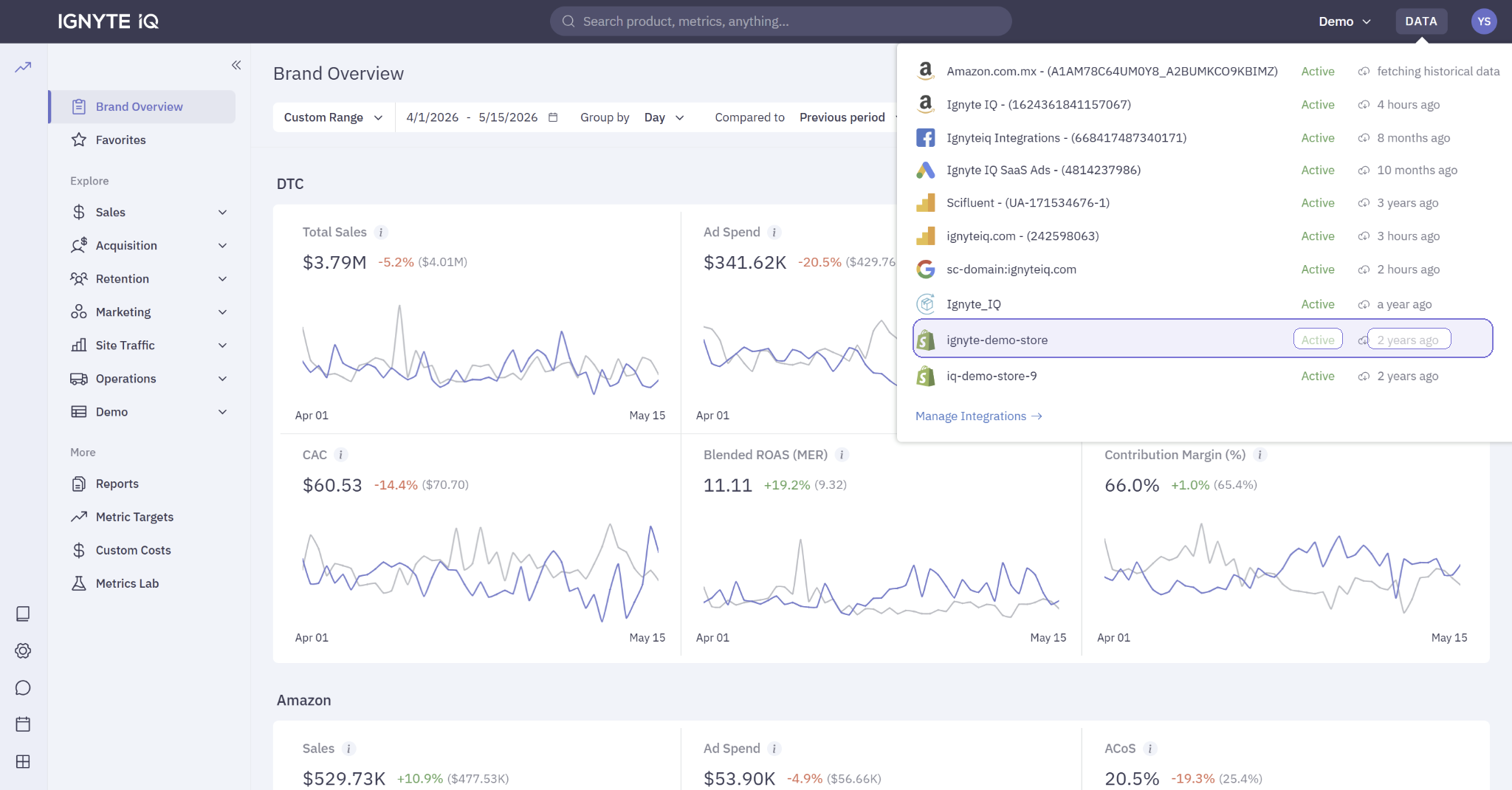
If the Data panel shows Disconnected instead, the token was revoked or permissions changed — reconnect from Settings → Integrations. See Reconnect a datasource. For larger value discrepancies, see Why numbers don’t match.
Troubleshooting
Section titled “Troubleshooting”- OAuth fails on the source side — confirm the OAuth account has the required role. Log out of the source in another tab and retry.
- Connection shows as Disconnected shortly after authorizing — the token was revoked or the source account’s permissions changed. Reconnect from Settings → Integrations.
- Authorization completed but no data appears after 15 minutes — the source account may not have permission to read the data Ignyte IQ requested. See Datasource won’t connect.
- OAuth screen reports insufficient permissions — the authorizing user does not have the required role on the source platform.