Data freshness and the 'last updated' timestamps
Datasources sync to Ignyte IQ on a schedule — typically hourly — and “last updated” appears in two different places that measure two different things. This article covers both: how long data takes to reach a dashboard, and how to read the Data-panel and ℹ️-panel timestamps. End-to-end latency between an event in a source platform and its appearance on a dashboard is usually 30–90 minutes, varying by datasource and metric type.
How the sync chain works
Section titled “How the sync chain works”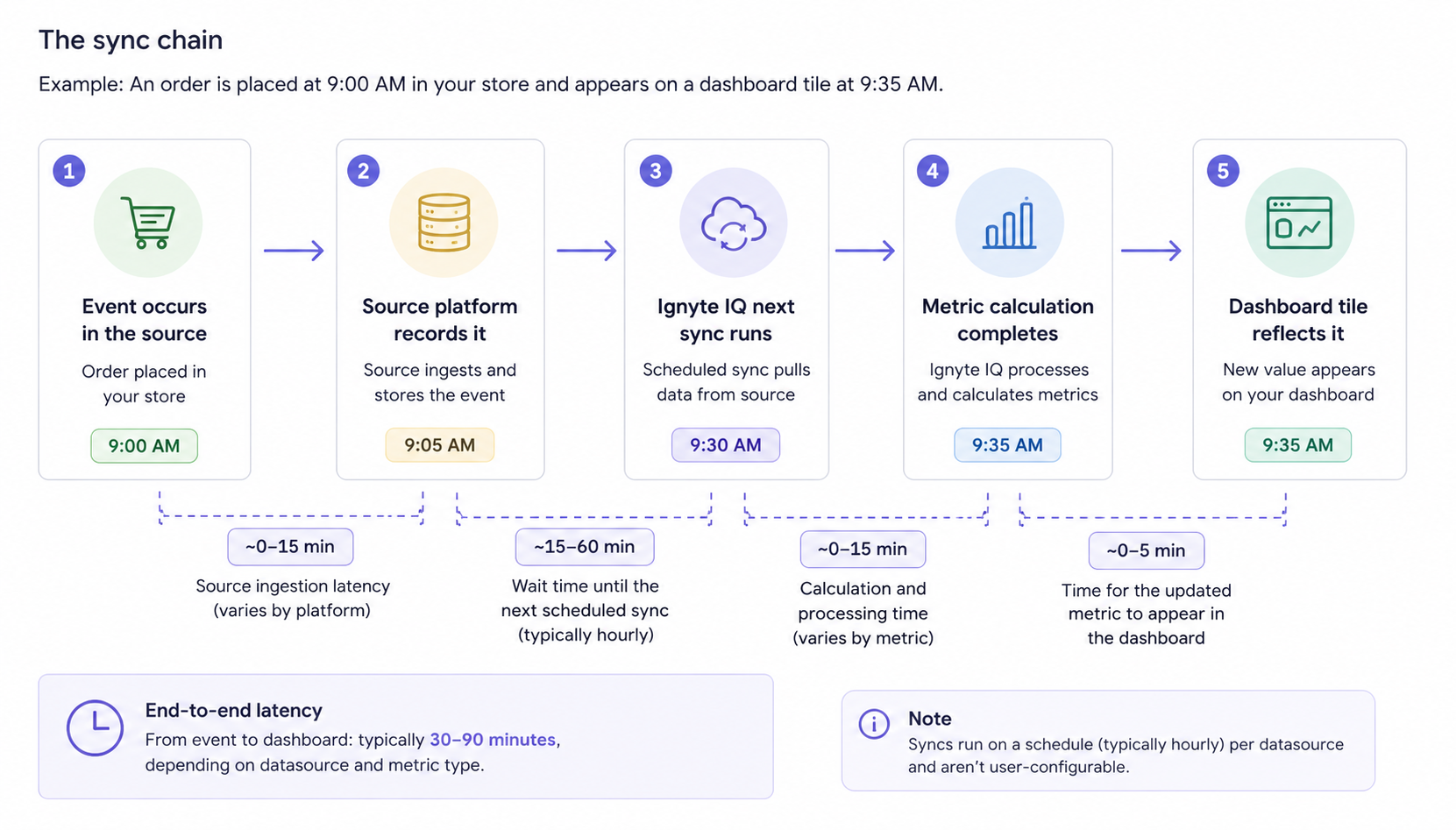
- An event occurs in the source (order placed, ad click logged).
- The source platform records it — some platforms have their own ingestion latency.
- Ignyte IQ’s next scheduled sync runs (typically hourly per source).
- Metric calculations rerun for the affected periods.
- Dashboard tiles reflect the new value.
What affects sync timing
Section titled “What affects sync timing”| Factor | Effect |
|---|---|
| Initial backfill vs incremental sync | The first sync pulls full history and takes longer; ongoing syncs are incremental and fast |
| Source platform API rate limits | Slower syncs during the platform’s peak hours |
| Source’s own ingestion latency | Some events are delayed at the source before Ignyte IQ can read them |
| Workspace plan limits | Higher-volume plans sync more data per run |
| Metric type | Heavy calculations (cohorts, LTV, RFM) can lag raw ingestion |
Sync schedules are managed by Ignyte IQ per datasource; they aren’t user-configurable.
The two “last updated” timestamps
Section titled “The two “last updated” timestamps”“Last updated” means different things depending on where you see it:
| Where | What it measures |
|---|---|
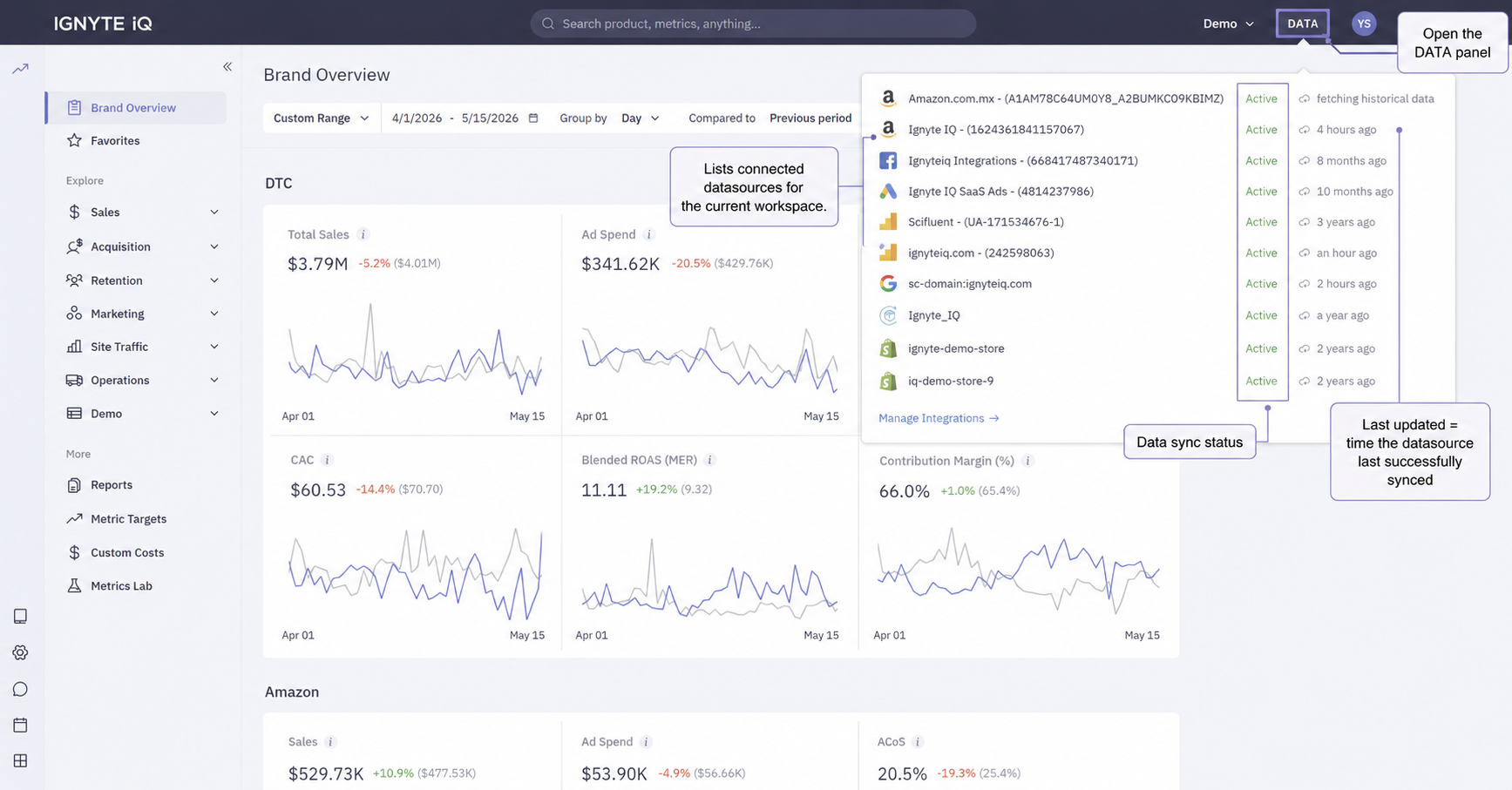
| Data panel (top-right) | Time the datasource last successfully synced |
| ℹ️ panel (on a tile) | Time that specific metric was last calculated for the current view |
Sync (pulling source data) and calculation (computing a metric) are separate steps. Most metrics calculate inline with sync, so the two timestamps agree to within minutes. But cohort analysis, LTV trends, RFM segmentation, and customer-level rollups run on a separate calculation schedule — for these, the ℹ️-panel timestamp can lag the Data-panel timestamp by an hour or more.
| Data panel | ℹ️ panel | Meaning |
|---|---|---|
| Recent | Recent | Both source and metric are current |
| Recent | Stale (hours old) | Source is current; the metric’s calculation is still queued |
| Stale | Stale | Source hasn’t synced recently — reconnect or wait |
| Stale | Recent | Unusual; investigate |
Common questions
Section titled “Common questions”My Data panel says it synced 2 hours ago but my numbers look stale — why?
The Data panel reports datasource sync, not metric calculation. For heavy metrics (cohorts, LTV, RFM), the calculation runs on its own schedule and can lag the sync. Check the ℹ️ panel on the specific tile for its calculation time.
Why does the ℹ️ panel show a different time than the Data panel?
They measure different steps — the Data panel is when the datasource synced; the ℹ️ panel is when that metric was last computed. The gap between them is the calculation step.
Can a sync be triggered manually?
The reconnect/refresh action in Settings → Integrations triggers a fresh pull for a specific datasource.
Is partial-day data trustworthy?
Partial-day data covers the start of the day through the most recent sync. Compare it only against a similarly partial prior period.
Troubleshooting
Section titled “Troubleshooting”- One tile’s number looks hours behind the rest of the dashboard — it’s a heavy metric (cohort, LTV, RFM) whose calculation lags sync. Confirm via the ℹ️ panel’s calculation time; it catches up on the next calculation run.
- Every tile is stale and the Data panel shows an old sync time — the datasource hasn’t synced. Reconnect from Settings → Integrations; see Datasource won’t connect.